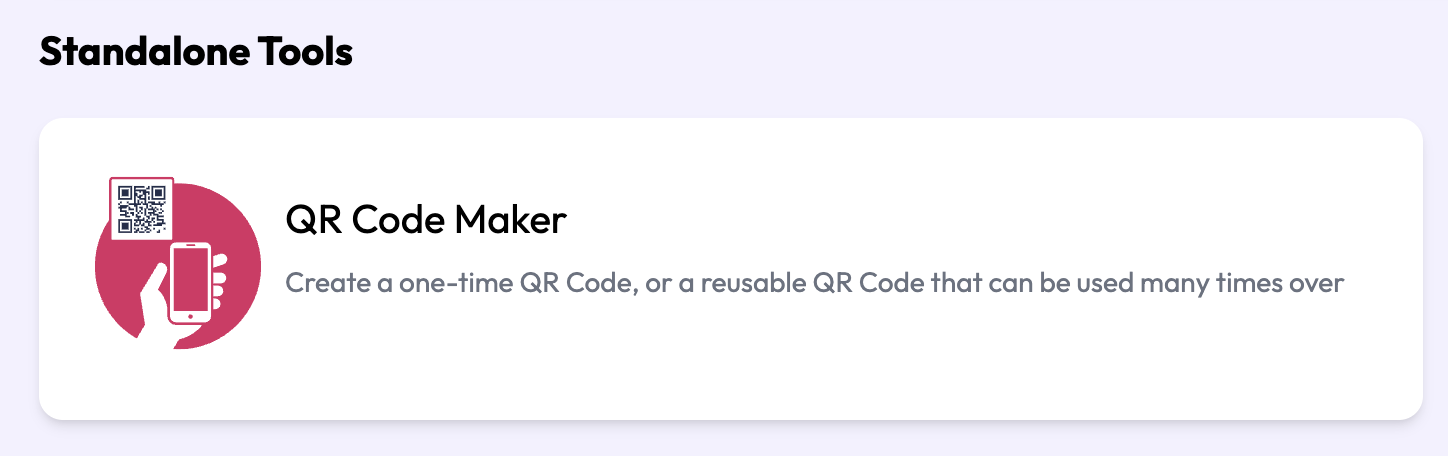
In the Dashboard, clicl QR Code Maker under Standalone Tools
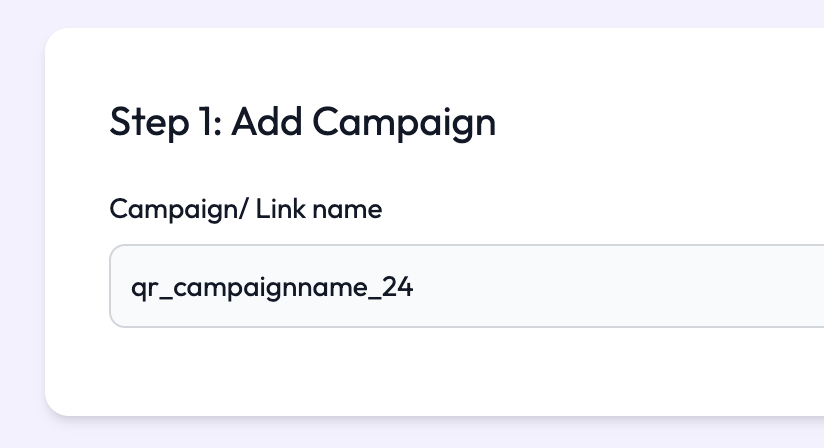
Type in the name of QR Code Campaign (we recommend a convention such as "campaign_ddmmyy")
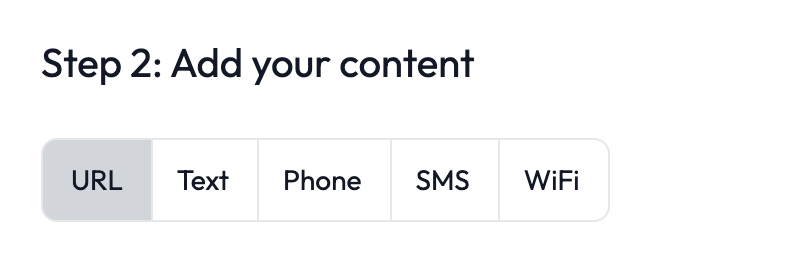
Campaign Link's QR Code Maker lets you create multiple types of QR Codes:
URL: sending the scanner to a particular website
Text: showing the scanner particular text
Phone: dialling a particular number upon scanning
SMS: pre-loading a particular SMS message and number upon scanning
WiFi: pre-loading a particular WiFi name and password upon scanning

Once you've completed STEP 1, you can design your QR Code
Add your background colour either via hex code or the colour picker
Add your QR code colour either via hex code or the colour picker
Select from 12 different design styles of QR code
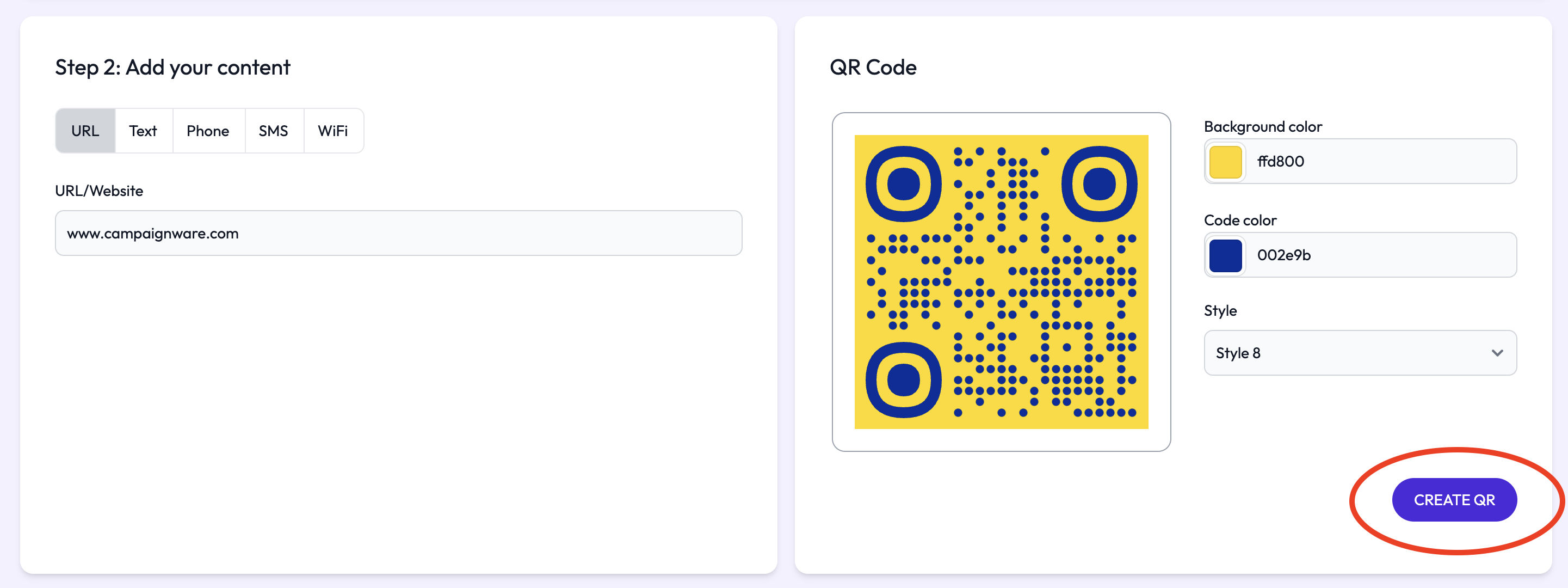
Hit CREATE QR when you're done
In the Dashboard, you'll see your QR Code, along with edit and delete buttons.

You can download your QR Code in the following formats:
JPG
PNG
WEBP